
How to upload an ABA file to NAB Connect
Need an ABA file first? Create a validated payment file from your spreadsheet with ABAFlow, then upload it to NAB Connect for review and authorisation.
Spreadsheet → ABAFlow → ABA file → NAB Connect → Authorise
Upload your ABA file to NAB Connect
Once you’ve downloaded your .aba file, uploading it to NAB Connect takes just a few steps.
1. Open Upload a payment file
Sign in to NAB Connect.
From the main menu, select Payments, then choose Upload a payment file.
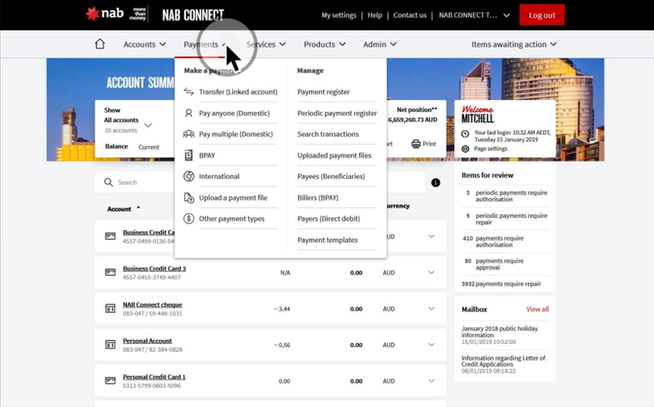
In NAB Connect, go to Payments → Upload a payment file. Select image to view full size. 2. Choose your payment type
Select the payment type that matches the file you’re uploading.
For an ABA payment file this may be Direct Credit or Payroll, depending on the payment you’re making and your NAB Connect setup.
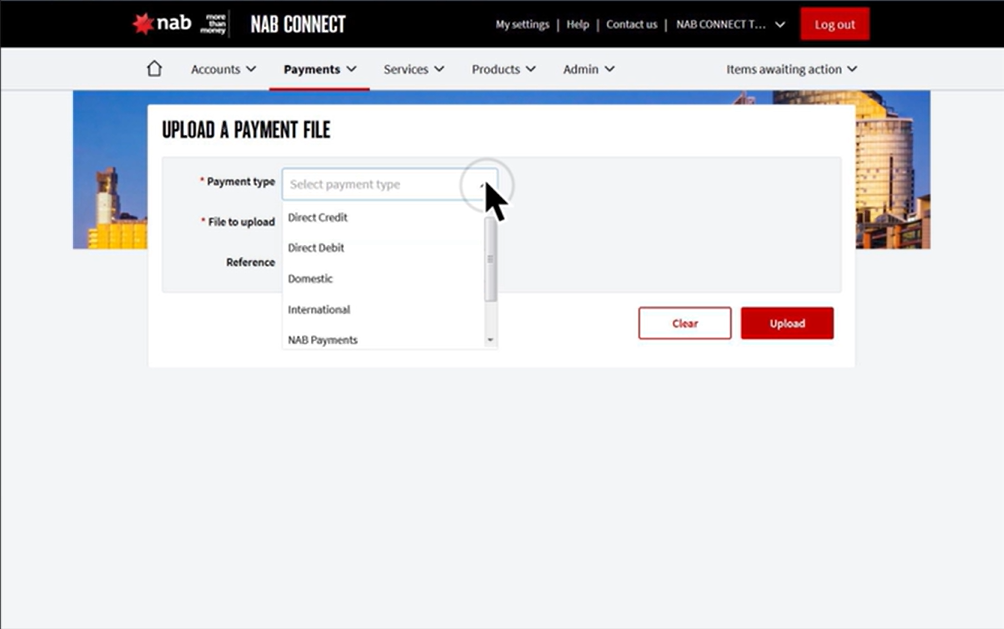
Select image to view full size. 3. Select your ABA file and add a reference
Select Browse and choose the .aba file you downloaded from ABAFlow.
Add a Reference to help identify the payment file in NAB Connect, then select Upload.
Reference: September Payroll
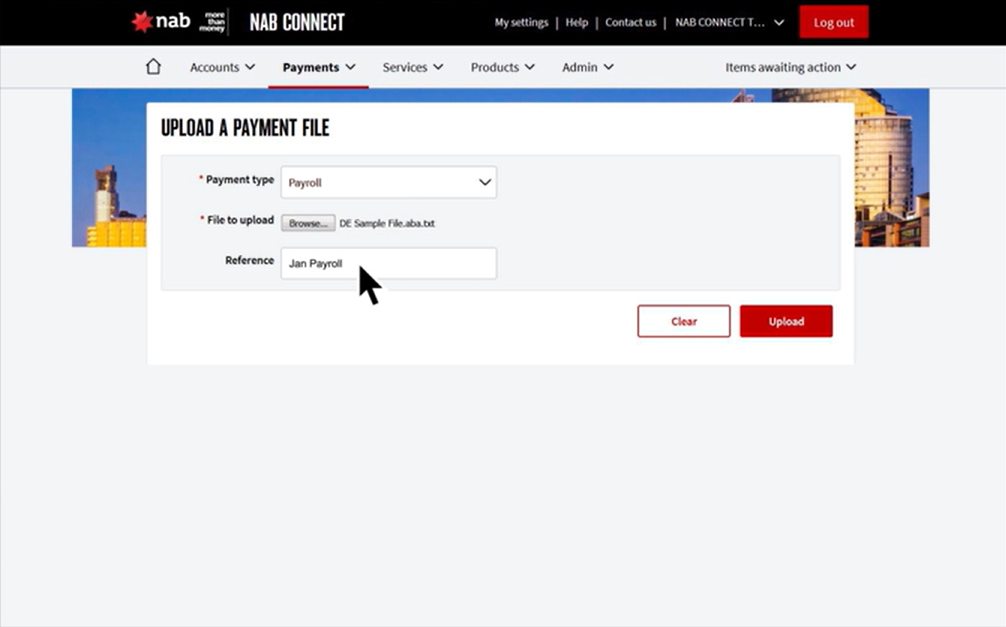
Select image to view full size. 4. Check that NAB Connect accepts the file
NAB Connect automatically checks the uploaded Direct Entry file.
If the file passes its checks, NAB Connect displays an Accepted confirmation.
Select View payment to continue with your normal NAB Connect review and authorisation process.
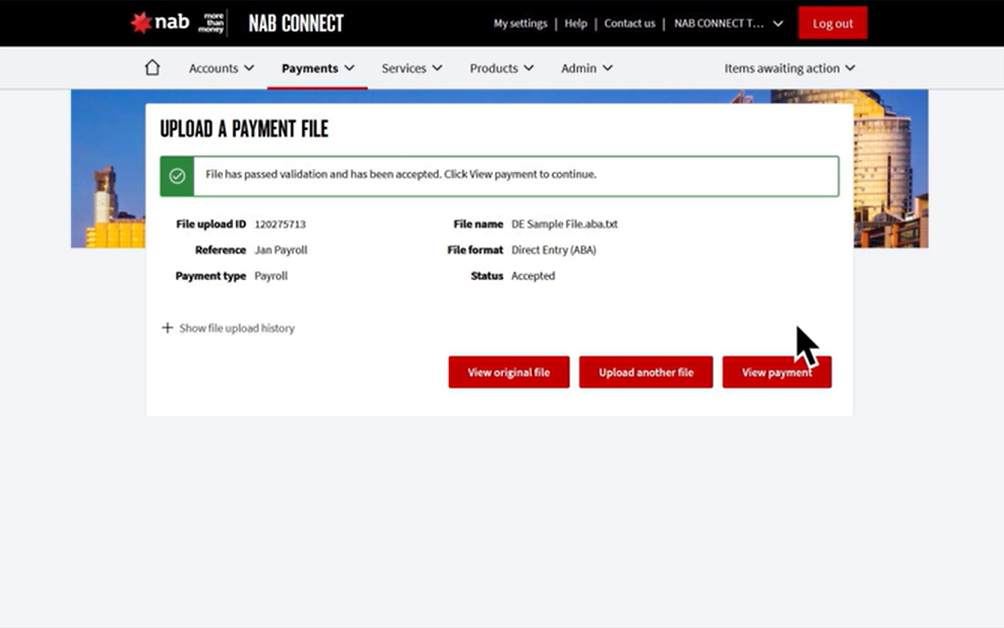
Select image to view full size. File accepted? Select View payment and continue with your normal NAB Connect review and authorisation process.
- ABAFlowCreate + validate your ABA file
- NAB ConnectUpload + bank validation
- Your organisationReview + authorise
Need to create the ABA file first?
ABAFlow turns your spreadsheet payment data into a validated ABA payment file ready to upload to NAB Connect.
- 01
Upload your payment data
Use Excel, CSV, Google Sheets, Apple Numbers or paste your payment data.
- 02
Map your payment columns
Map BSB, account number, account name, amount and payment description.
- 03
Select NAB Connect
Bank: NAB · Banking service: NAB Connect
- 04
Review and validate
ABAFlow checks your payment data and ABA file structure before generation.
- 05
Download your ABA file
Download the .aba file and upload it to NAB Connect using the instructions above.
Your first 5 files are free when you create and verify your account. No card or subscription required.
What is my NAB Direct Entry User ID?
When creating an ABA file, you may need the Direct Entry User ID associated with your organisation’s NAB Direct Entry setup.
This is part of your banking configuration rather than information ABAFlow can determine from your spreadsheet.
If you’re unsure which Direct Entry User ID to use, check your NAB Connect setup, ask your organisation’s NAB Connect administrator or contact NAB.
ABAFlow checks your file before you upload it
ABAFlow handles the Direct Entry file formatting for you. It checks your payment data and builds the required ABA records before you download the file.
You can review your payment in ABAFlow before downloading it. NAB Connect then performs its own validation when you upload the ABA file.
- ABAFlowCreate + validate your ABA file
- NAB ConnectUpload + bank validation
- Your organisationReview + authorise
NAB Connect rejected my ABA file
What should I check first?
Start with the message displayed by NAB Connect. It may identify whether the issue relates to the payment file or your NAB banking configuration.
Can I inspect the ABA file?
Yes. If the problem appears to relate to the file itself, use ABAFlow’s ABA File Inspector to review the file before trying again. Inspect an ABA file →
What if the issue relates to my NAB settings?
If the issue relates to your Direct Entry User ID, funding account, banking facility or NAB Connect permissions, check your organisation’s NAB Connect setup or contact your NAB Connect administrator or NAB.
Does ABAFlow send the payment?
No. ABAFlow creates and validates the ABA payment file.
You upload the file to NAB Connect, review it and complete your organisation’s normal banking authorisation process.
ABAFlow does not access your NAB Connect account and does not move money.
Create an ABA file for NAB Connect
Turn payment data from Excel, CSV, Google Sheets or Apple Numbers into a validated ABA file ready for NAB Connect.
Spreadsheet → Create with ABAFlow → Download ABA → Upload to NAB Connect → Authorise
Create an ABA file for NAB ConnectYour first 5 files are free when you create and verify your account. No card or subscription required.
Related guides
Source: NAB’s upload bulk payments guide. Screenshots show NAB’s instructional examples.
ABAFlow is an independent service and is not affiliated with or endorsed by National Australia Bank Limited. NAB and NAB Connect are trademarks of their respective owners. Banking interfaces and processes may change.