
Apple Numbers guide

How to create an ABA file from Apple Numbers

Create an ABA file from Apple Numbers: paste your payment data or export an Excel file to upload.

Optional head start

Start with the template.

Download the template and open it in Numbers. BSB and account columns are already formatted as text; save a Numbers copy before adding payments.

Already have your payment data?

Quick copy & paste.

Copy these five columns in order, then paste them into ABAFlow.

BSB → Account Number → Account Name → Amount → Description

Paste payment data Up to 500 payments · 1 MB
See copy & paste example

Click the payment grid and press Ctrl+V (Windows) or Cmd+V (Mac). Paste skips column mapping.

Copy payment table
  1. Step 01

    Prepare your payment data.

    Use BSB, Account Number, Account Name, Amount and Description headings. Keep one payment per row.
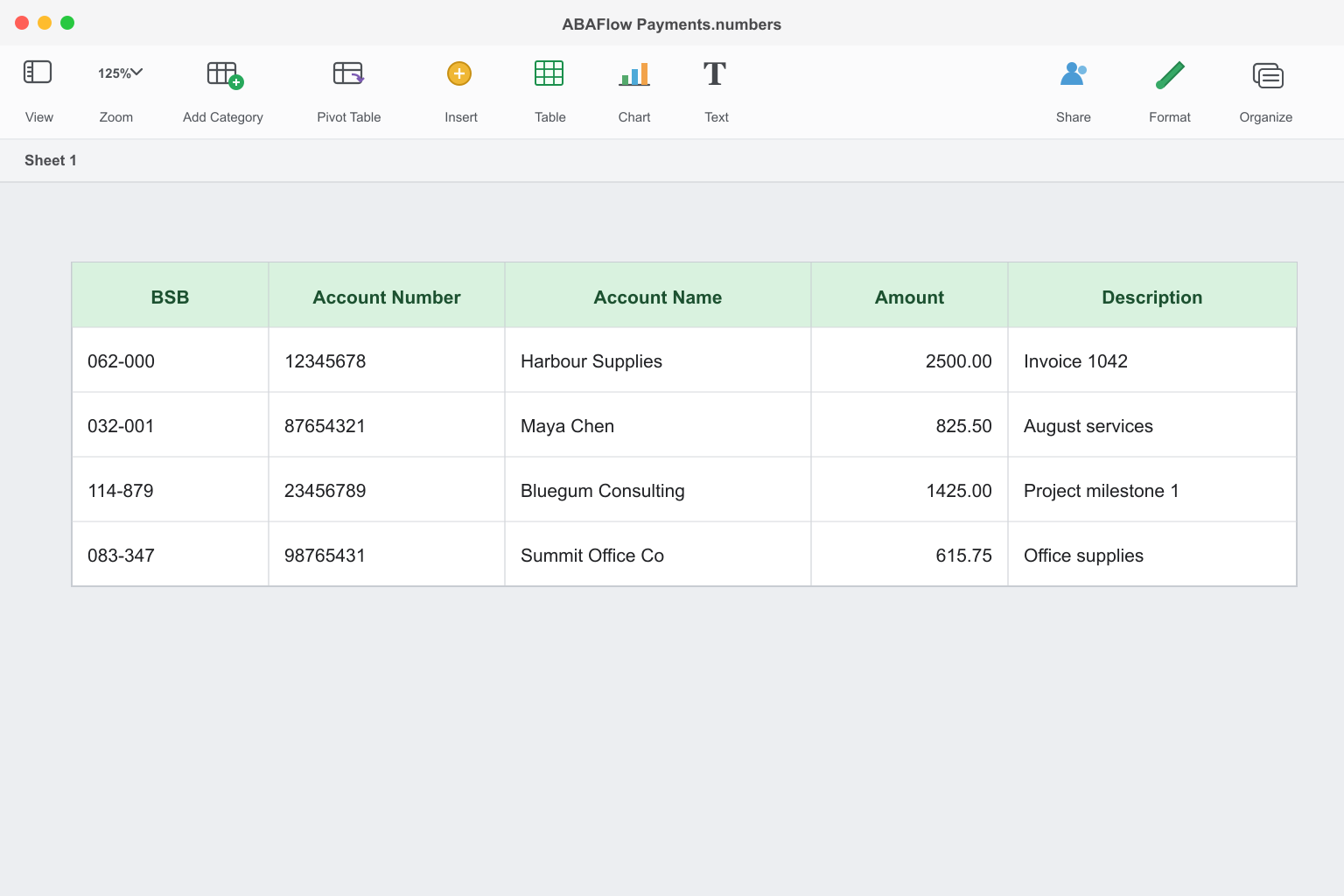
    ABAFlow Payments.numbers
    Apple Numbers payment table with the five ABAFlow columns and example payment rows

    Next: protect BSBs and account numbers

  2. Step 02

    Preserve BSB and Account formatting.

    Before adding data, select BSB and Account Number columns, then choose Format → Cell → Data Format → Text.
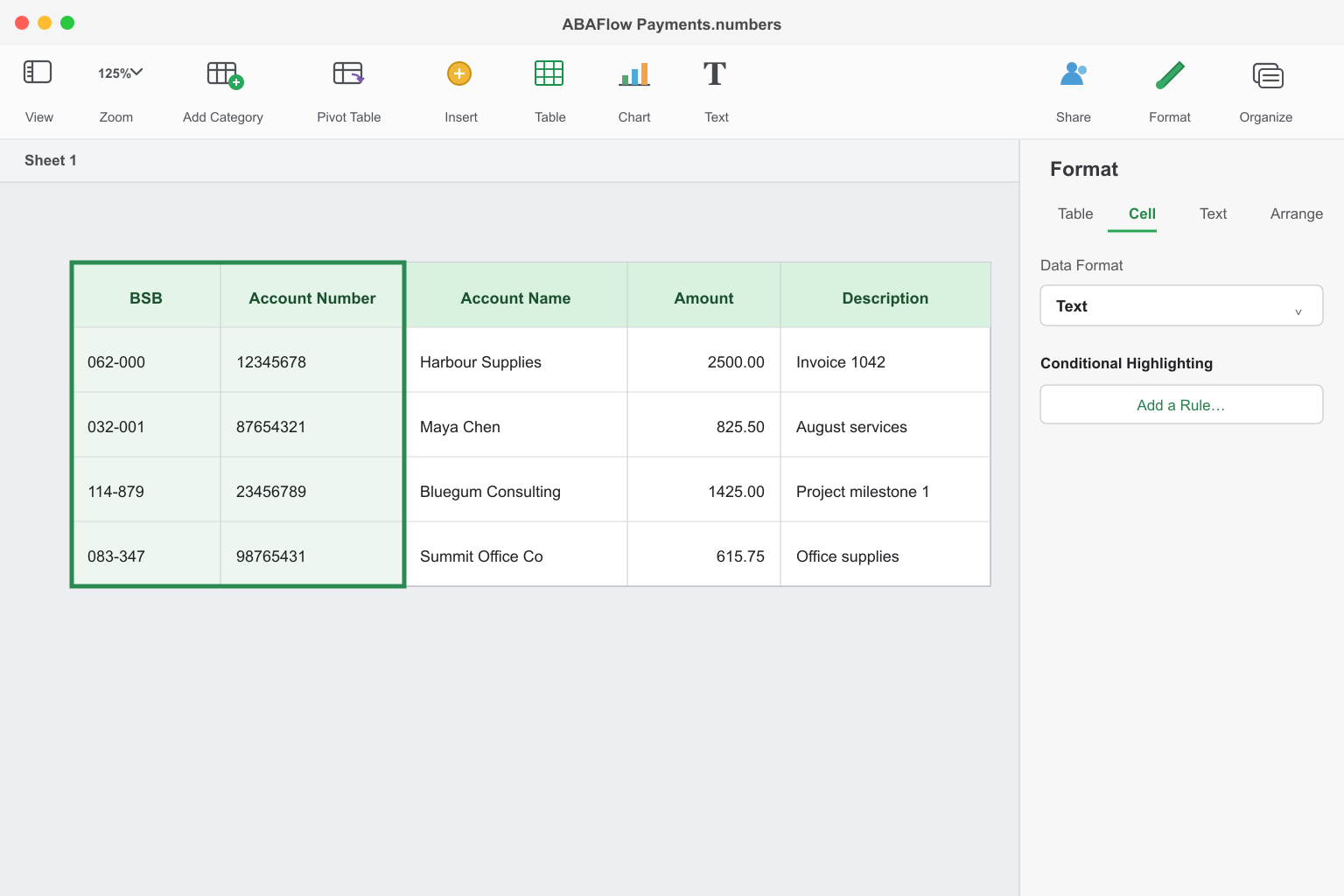
    Format → Cell → Data Format → Text
    Apple Numbers Format sidebar with Text selected for BSB and Account Number columns

    Ready? Bring your data into ABAFlow

  3. Step 03

    Export to Excel (.xlsx)

    Choose File → Export To → Excel. Save the .xlsx workbook for upload to ABAFlow.

    File → Export To → Excel

    Next: upload your Excel file

  4. Step 04

    Continue in ABAFlow.

    Upload your file, check the payments, then follow ABAFlow to review and download your ABA file.

    Upload & validation
    Excel (.xlsx)CSVPaste
    XLSX
    ABAFlow Payments.xlsx4 payment rows detected
    ✓All rows are valid
    BSBAccountNameAmount
    062-00012345678Harbour Supplies$2,500.00
    032-00187654321Maya Chen$825.50
    114-87923456789Bluegum Consulting$1,425.00
    083-34798765431Summit Office Co$615.75
Bank
Business banking

Upload your ABA file to your bank.

Use your bank's batch or Direct Entry payment area to submit and approve the file.

  1. 01

    Sign in to your business banking.

  2. 02

    Go to the relevant batch or direct-entry payment area.

  3. 03

    Upload the .aba file.

  4. 04

    Review the payment details.

  5. 05

    Authorise the payment.

Help
Apple Numbers

Common issues.

Check these application-specific fixes if the exported data does not look right.

A table name appears above the headings

Keep one simple payment table on the sheet and use ABAFlow's preview to confirm the heading and first payment rows are detected correctly.

The workbook contains extra tables

Keep the payment data in one simple table and remove page titles, summaries and blank rows before exporting or pasting.

Amounts contain currency formatting

Set the Amount column to Number before exporting or copying, and use no more than two decimal places.

Ready to begin?

Create your ABA file

Create your ABA file →

Back to all guides