
The workbook contains several sheets
After uploading the .xlsx file, choose the worksheet that contains your payment data when ABAFlow asks.
Create an ABA file from Google Sheets: paste your payment data or download an Excel file to upload.
Use BSB, Account Number, Account Name, Amount and Description headings. Keep one payment per row.
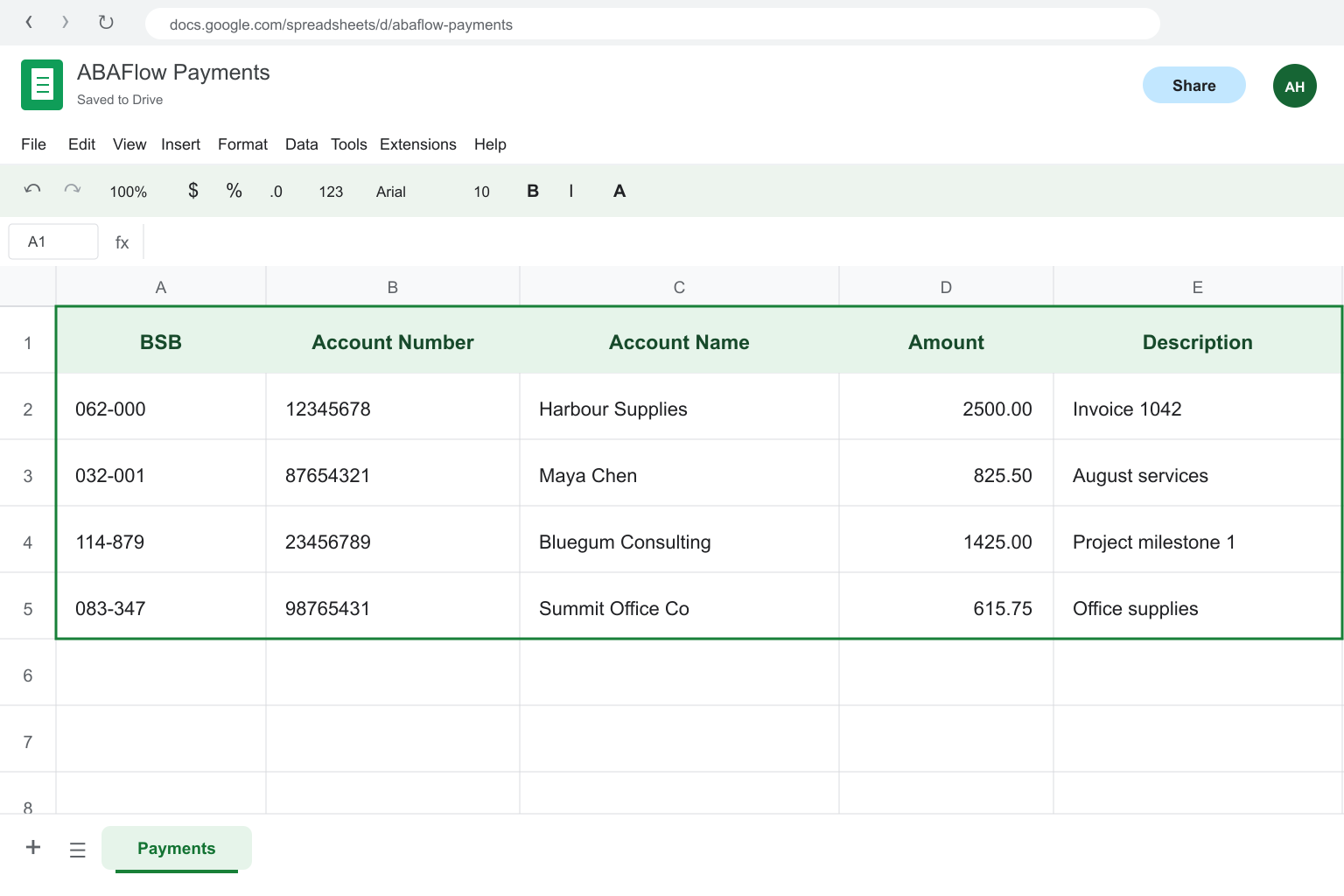
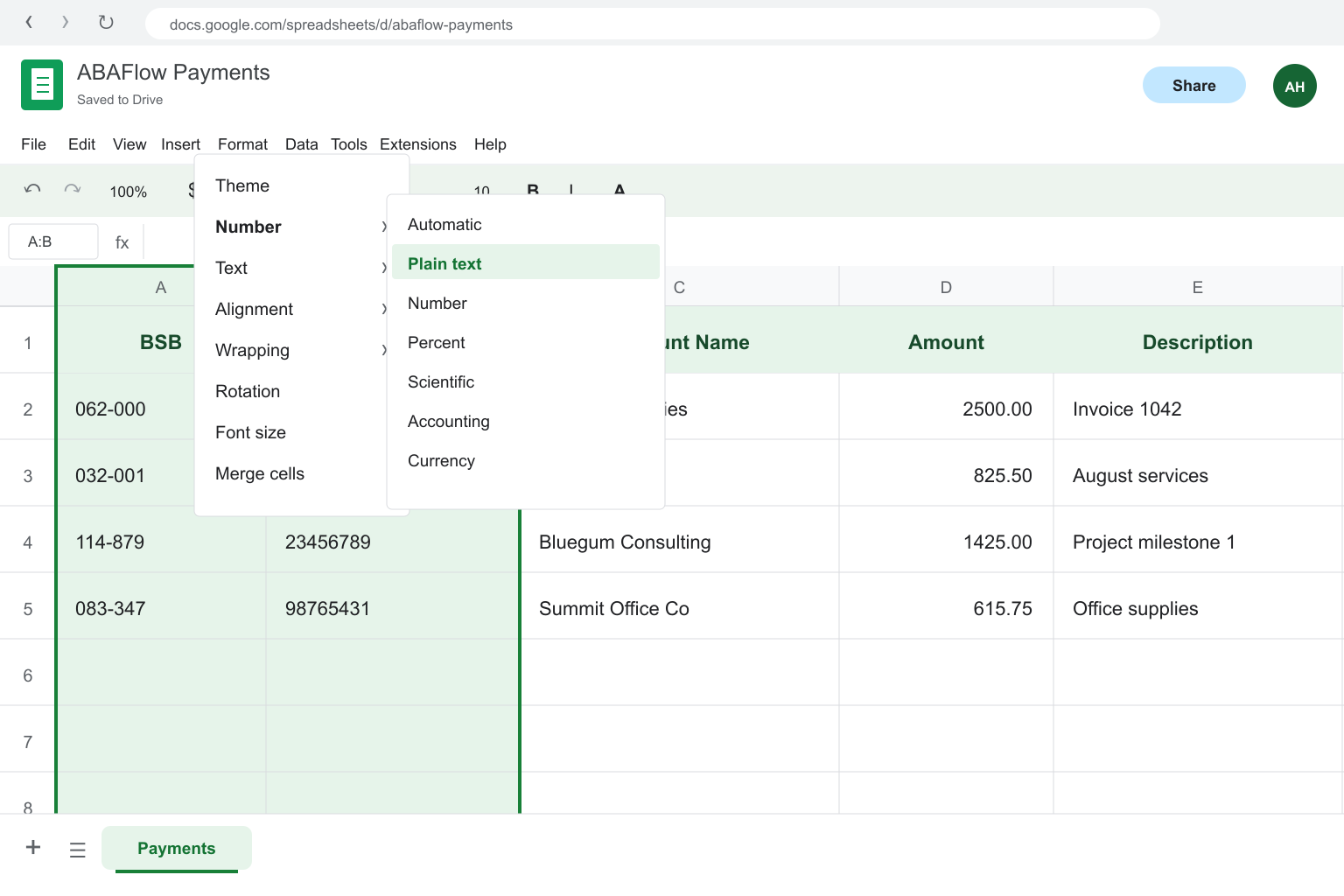
Before adding data, select BSB and Account Number columns, then choose Format → Number → Plain text.
Choose File → Download → Microsoft Excel (.xlsx). Save the workbook for upload to ABAFlow.
Upload your file, check the payments, then follow ABAFlow to review and download your ABA file.
Use your bank's batch or Direct Entry payment area to submit and approve the file.
Sign in to your business banking.
Go to the relevant batch or direct-entry payment area.
Upload the .aba file.
Review the payment details.
Authorise the payment.
Check these application-specific fixes if the exported data does not look right.
After uploading the .xlsx file, choose the worksheet that contains your payment data when ABAFlow asks.
Set the BSB column to Plain text before entering or pasting the value.
ABAFlow reads the displayed payment values from the selected worksheet, not comments or other supporting content.