
Step 01
Create the payment worksheet
Use BSB, Account Number, Account Name, Amount and Description as the five headings. Keep one payment per row and enter amounts as plain numbers without dollar signs or commas.
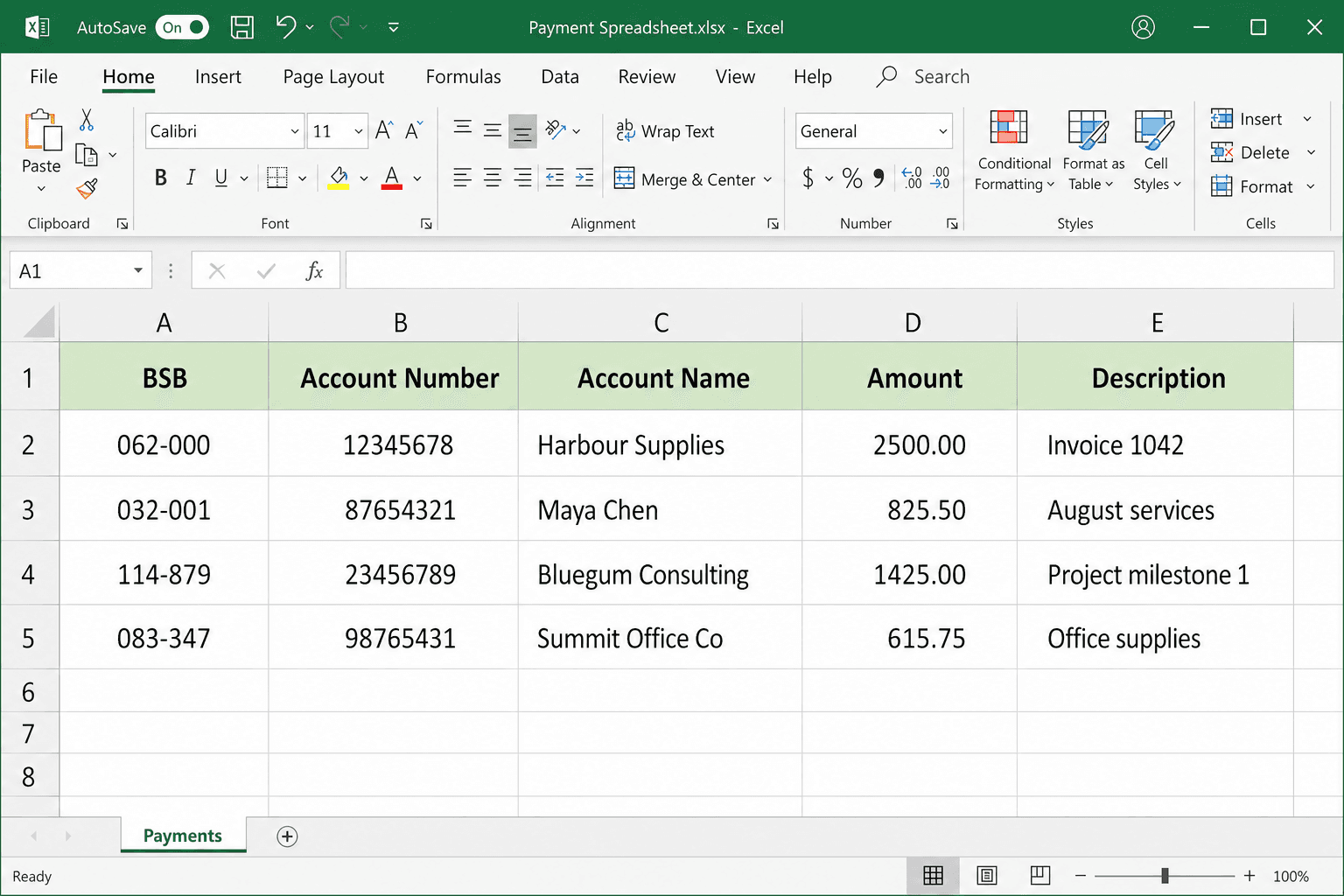
This Excel to ABA file guide shows how to prepare a clean payment worksheet and upload the .xlsx workbook directly. ABAFlow accepts Excel .xlsx files, so you do not need to convert your spreadsheet to CSV first.
Prepare ExcelUpload .xlsxMap columnsFile settingsReview & download
Create a clean payment worksheet and preserve BSB and account-number formatting before adding the workbook to ABAFlow.
Use BSB, Account Number, Account Name, Amount and Description as the five headings. Keep one payment per row and enter amounts as plain numbers without dollar signs or commas.
Before entering or pasting data, format the BSB and Account Number columns as Text so Excel keeps leading zeros and avoids scientific notation.
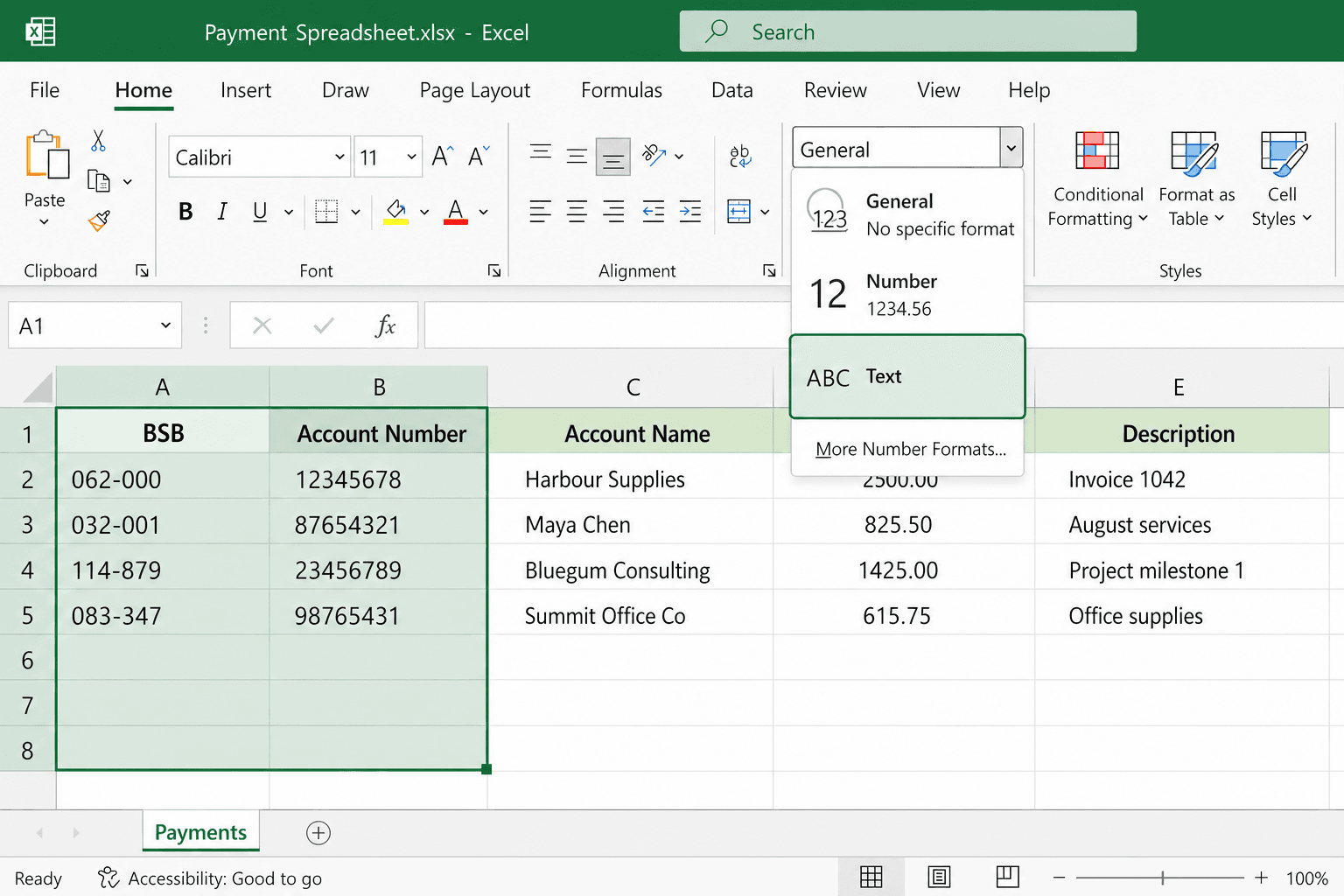
BSB and account-number columns are already formatted as Text. The workbook contains no sample payment data.
ABAFlow accepts Excel .xlsx files directly, so you do not need to convert your spreadsheet to CSV first.
Keep your prepared payment sheet in a standard Excel workbook. Legacy .xls files are not supported.
Open ABAFlow, choose your Excel .xlsx file and review the payment rows ABAFlow detects before continuing.
You can also upload a CSV file or copy your payment table from Excel and paste it directly into ABAFlow.
Upload an existing CSV file directly to ABAFlow.
Or select and copy your payment table in Excel.
Open ABAFlow, choose Paste and paste the spreadsheet data.
Review the detected rows, then continue to mapping.
Use ABAFlow's ABA file generator to create an ABA file from spreadsheet data. Add an Excel or CSV file, or paste your payment table, then follow the same four-step journey.
Upload Excel or CSV, or paste from your spreadsheet — we’ll check your data.
Match your spreadsheet columns to the required ABA payment fields.
Choose your bank and enter the details required for your ABA file.
Review the payment summary and download your bank-ready ABA file.
Use your bank's batch or Direct Entry payment area to submit and approve the file.
Sign in to your business banking.
Go to the relevant batch or direct-entry payment area.
Upload the .aba file.
Review the payment details.
Authorise the payment.
Check these application-specific fixes if the exported data does not look right.
Undo the change, format the BSB column as Text, then re-enter the value.
Format the Account Number column as Text before entering or pasting account numbers.
Confirm the file uses the .xlsx format and is no larger than 25 MB. Legacy .xls workbooks are not supported; save a new .xlsx or CSV UTF-8 copy.